Chapter 1: Network Architecture, OS, Data Storing and Fault Tolerance
From Mainframes to Modern Storage: Building Resilient Network Infrastructure
1.1 Mainframe Architecture: The Backbone of Enterprise Computing
Mainframe computers represent the pinnacle of reliable, high-performance computing for large-scale organizational needs. Understanding mainframe architecture provides insight into modern enterprise systems.

Key Characteristics of Mainframe Architecture:
Mainframes are engineered for maximum uptime with redundant components, hot-swappable parts, and predictive failure analysis. They achieve 99.999% availability (less than 6 minutes downtime per year).
Designed to handle thousands of simultaneous connections and transactions. Mainframes excel at processing massive volumes of data with consistent performance, making them ideal for banking, airlines, and government systems.
Scale-up architecture allows adding processors, memory, and I/O channels without disrupting operations. Modern mainframes can have hundreds of processors and terabytes of RAM.
Mainframe Components:
- Central Processor Complex (CPC): Contains processors, memory, and I/O subsystems
- Logical Partitions (LPARs): Virtual machines that divide physical resources
- Channel Subsystems: Dedicated I/O processors that offload work from CPUs
- Coupling Facilities: Specialized hardware for clustering and data sharing
Modern Relevance: Despite cloud computing growth, mainframes still process over $3 trillion in daily commerce transactions. They remain critical for industries requiring extreme reliability and security.
1.2 Client-Server Architecture Models
Client-server architecture revolutionized distributed computing by separating requesters (clients) from providers (servers) of services and resources.

Client-Server Models:
| Model | Description | Use Cases | Advantages |
|---|---|---|---|
| Two-Tier | Client directly connects to server (database) | Small applications, desktop software | Simple, fast development, low latency |
| Three-Tier | Client → Application Server → Database Server | Web applications, enterprise systems | Scalability, security, maintainability |
| N-Tier | Multiple layers with specialized functions | Large enterprise applications | Flexibility, reusability, independent scaling |
| Peer-to-Peer | Nodes act as both clients and servers | File sharing, blockchain | Decentralized, no single point of failure |
File Server Architecture:
Specialized servers that provide shared storage and file access to network clients.
- Centralized Storage: Single location for data management and backup
- Access Control: Permissions and authentication for file security
- File Locking: Prevents conflicts when multiple users access same file
- Caching: Improves performance by storing frequently accessed files locally
Upsizing: Moving from smaller systems (PCs) to larger systems (servers/mainframes) for better performance and reliability. Downsizing: Moving from large systems to distributed smaller systems for cost savings and flexibility. Right-sizing: Choosing the optimal platform based on requirements.
2.1 Physical Server Form Factors
Understanding different server hardware configurations is essential for infrastructure planning and deployment.
Tower Servers:
Standalone servers resembling desktop PCs in upright tower cases. Ideal for small businesses and entry-level applications.
- Advantages: Low cost, quiet operation, easy to expand, no rack required
- Disadvantages: Large footprint, limited scalability, difficult cable management
- Best For: Small offices, file/print servers, development environments
Rack Servers:
Servers designed to mount in standardized 19-inch racks. Measured in rack units (U), where 1U = 1.75 inches height.
- Advantages: High density, efficient space utilization, organized cabling, easy maintenance
- Disadvantages: Requires rack infrastructure, can be noisy, needs proper cooling
- Common Sizes: 1U (compact), 2U (balanced), 4U (high-performance)
Blade Servers:
Modular servers (blades) that slide into a chassis providing shared power, cooling, networking, and management.
- Advantages: Maximum density, reduced cabling, shared infrastructure, hot-swappable
- Disadvantages: Higher initial cost, vendor lock-in, complex cooling requirements
- Best For: Data centers, cloud providers, high-performance computing clusters
| Feature | Tower | Rack | Blade |
|---|---|---|---|
| Density | Low | Medium-High | Very High |
| Cost | $ | $$ | $$$ |
| Scalability | Limited | Good | Excellent |
| Power Efficiency | Medium | Good | Excellent |
3.1 File System Fundamentals
File systems provide the structure for storing, organizing, and retrieving data on storage devices. Different operating systems use different file systems optimized for their environments.
Windows File Systems:
Legacy file system with simple structure. Variants: FAT16, FAT32, exFAT. Limitations: 4GB file size limit (FAT32), no journaling, limited security. Use: USB drives, SD cards, compatibility with multiple OS.
Modern Windows file system with advanced features. Features: Journaling, file compression, encryption (EFS), disk quotas, ACLs, large file support (16EB max). Use: System drives, enterprise storage.
Linux/Unix File Systems:
Linux native file systems. EXT3: Added journaling to EXT2. EXT4: Current standard with extents, delayed allocation, and improved performance. Features: Journaling, large file support (16TB), backward compatibility.
High-performance 64-bit journaling file system. Strengths: Excellent for large files, parallel I/O, fast recovery. Use: Enterprise servers, media storage.
Advanced file system with volume management. Features: Snapshots, compression, deduplication, RAID-Z, data integrity verification, copy-on-write. Use: High-end storage servers, NAS appliances.
Network File Systems:
Unix/Linux network file sharing protocol. Versions: NFSv3 (stable), NFSv4 (improved security, stateful). Use: Unix-to-Unix file sharing, home directories.
Windows network file sharing protocol (SMB is the protocol, CIFS is an implementation). Use: Windows file/printer sharing, Samba for Linux-Windows interoperability.
File System Selection: Choose based on requirements: NTFS for Windows compatibility, EXT4 for Linux servers, XFS for large files, ZFS for data integrity and snapshots, NFS for Unix networks, SMB/CIFS for mixed environments.
3.2 Mounting and Managing File Systems
Understanding how to mount, unmount, and manage file systems is essential for system administration.
Mounting Concepts:
A directory in the file system hierarchy where a storage device or partition is attached and becomes accessible.
# Linux Mounting Commands

# View currently mounted file systems
mount

# Mount a device manually
mount /dev/sdb1 /mnt/data

# Mount with options (read-write, no execution)
mount -o rw,noexec /dev/sdb1 /mnt/data

# Unmount a file system
umount /mnt/data

# View disk space usage
df -h

# Check file system integrity
fsck /dev/sdb1

# Permanent mounting via /etc/fstab
# /dev/sdb1  /mnt/data  ext4  defaults  0  2
File System Management Tasks:
- Creating File Systems:
mkfs.ext4 /dev/sdb1ormkfs.ntfs /dev/sdb1 - Checking Disk Usage:
df -h(disk free),du -sh /path(disk usage) - File System Check:
fsckto repair corrupted file systems - Quota Management: Limit user/disk space with
edquota,repquota - Permissions:
chmod(change mode),chown(change owner)
Critical Warning: Never run fsck on a mounted file system. Always unmount first or boot from rescue media. Running fsck on mounted filesystems can cause data corruption.
4.1 Disk Interface Technologies
Storage interfaces determine how disks connect to computers and significantly impact performance, cost, and use cases.
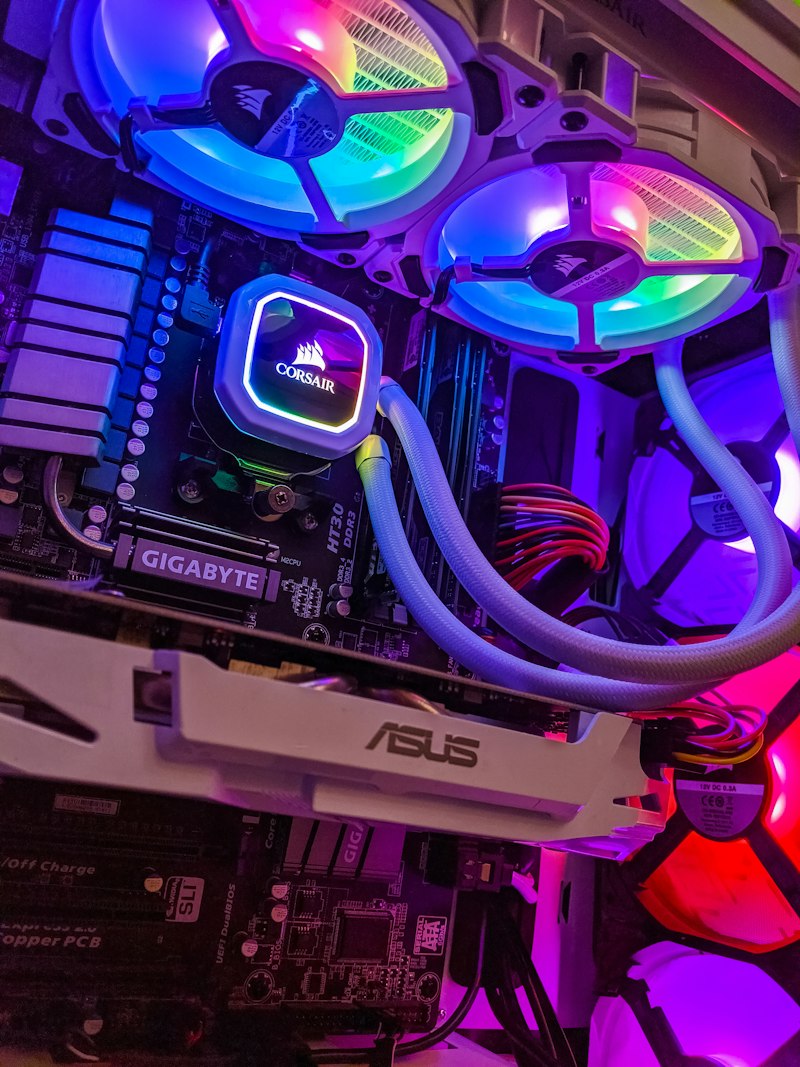
SATA (Serial ATA):
Consumer-grade interface for HDDs and SSDs. Speeds: SATA I (1.5 Gb/s), SATA II (3 Gb/s), SATA III (6 Gb/s). Advantages: Low cost, wide compatibility, hot-swappable. Use: Desktop PCs, budget servers, bulk storage.
SAS (Serial Attached SCSI):
Enterprise-grade interface with higher performance and reliability. Speeds: SAS-3 (12 Gb/s), SAS-4 (24 Gb/s). Advantages: Better reliability, dual-port capability, higher IOPS, longer cable lengths. Use: Enterprise servers, high-performance storage arrays.
SCSI (Small Computer System Interface):
Legacy parallel interface, largely replaced by SAS. Historical Significance: Dominated enterprise storage before SATA/SAS. Modern Use: Still found in legacy systems and specialized applications.
NVMe (Non-Volatile Memory Express):
Modern protocol designed specifically for SSDs over PCIe. Speeds: NVMe 1.3 (up to 32 Gb/s per lane), NVMe 2.0 (even faster). Advantages: Lowest latency, highest IOPS, parallelism. Use: High-performance computing, databases, caching layers.
| Interface | Max Speed | Cost | Use Case | Reliability |
|---|---|---|---|---|
| SATA III | 6 Gb/s | $ | Consumer/Bulk | Medium |
| SAS-3 | 12 Gb/s | $$ | Enterprise | High |
| NVMe PCIe 4.0 | 64 Gb/s | $$$ | High-Performance | High |
4.2 Storage Area Networks (SAN)
SANs provide block-level storage access over dedicated networks, separating storage from servers for better management and scalability.
SAN Fundamentals:
A dedicated high-speed network that provides access to consolidated block-level storage. Servers see SAN storage as locally attached disks, not network shares.
SAN Protocols:
Dedicated high-speed network technology (2/4/8/16/32 Gb/s). Advantages: Low latency, high throughput, lossless. Disadvantages: Expensive, requires specialized hardware (HBAs, FC switches).
Encapsulates SCSI commands over TCP/IP networks. Advantages: Uses existing Ethernet infrastructure, lower cost. Disadvantages: Higher latency than FC, depends on network quality.
Encapsulates FC frames over Ethernet networks. Advantages: Converges storage and data networks, maintains FC features. Requirements: Lossless Ethernet (DCB), specialized switches.
SAN Components:
- Storage Arrays: High-end disk systems with RAID, caching, and management
- HBAs (Host Bus Adapters): Specialized network cards for SAN connectivity
- Switches: FC switches or converged Ethernet switches
- Zoning: Logical segmentation for security and traffic management
- LUN Masking: Controls which servers can access which storage volumes
SAN vs NAS: SAN provides block-level storage (appears as local disk), while NAS provides file-level storage (appears as network share). SAN is faster but more complex; NAS is simpler but has more overhead.
5.1 RAID (Redundant Array of Independent Disks)
RAID combines multiple physical disks into a single logical unit for improved performance, redundancy, or both. Understanding RAID levels is critical for data protection strategies.
RAID 0 (Striping):
Data is split (striped) across multiple disks. Advantages: Maximum performance, full capacity utilization. Disadvantages: No fault tolerance—failure of one disk loses all data. Minimum Disks: 2. Use: Temporary data, caching, non-critical high-performance needs.
RAID 1 (Mirroring):
Data is duplicated (mirrored) on two or more disks. Advantages: Excellent read performance, complete data protection, simple recovery. Disadvantages: 50% capacity overhead (2 disks store 1 disk worth of data). Minimum Disks: 2. Use: OS drives, critical data requiring high availability.
RAID 5 (Striping with Distributed Parity):
Data and parity information are striped across all disks. Advantages: Good read performance, fault tolerance (survives 1 disk failure), efficient storage (only 1 disk worth of overhead). Disadvantages: Slow write performance (parity calculation), rebuild time can be long. Minimum Disks: 3. Use: File servers, general-purpose storage.
RAID 6 (Striping with Double Parity):
Like RAID 5 but with two parity blocks. Advantages: Survives 2 simultaneous disk failures. Disadvantages: Higher overhead (2 disks worth), slower writes than RAID 5. Minimum Disks: 4. Use: Large arrays, critical data with long rebuild times.
RAID 10 (1+0):
Combines RAID 1 mirrors with RAID 0 striping. Advantages: Excellent performance and redundancy, fast rebuild. Disadvantages: 50% capacity overhead (expensive). Minimum Disks: 4. Use: Databases, high-performance critical applications.
| RAID Level | Min Disks | Capacity | Fault Tolerance | Read Speed | Write Speed |
|---|---|---|---|---|---|
| RAID 0 | 2 | 100% | None | Excellent | Excellent |
| RAID 1 | 2 | 50% | 1 disk | Good | Good |
| RAID 5 | 3 | (N-1)/N | 1 disk | Excellent | Fair |
| RAID 6 | 4 | (N-2)/N | 2 disks | Excellent | Poor |
| RAID 10 | 4 | 50% | 1 per mirror | Excellent | Excellent |
RAID is NOT Backup: RAID protects against hardware failure but not against deletion, corruption, malware, or disasters. Always maintain separate backups in addition to RAID.
6.1 Linux Server Administration
Linux dominates server environments due to its stability, security, flexibility, and cost-effectiveness. Understanding Linux server fundamentals is essential for system administrators.

Popular Linux Distributions:
Commercial distribution with enterprise support. Use: Enterprise servers, mission-critical applications. Package Manager: YUM/DNF (RPM packages).
Debian-based distribution with long-term support (LTS) versions. Use: Cloud servers, web hosting, development. Package Manager: APT (DEB packages).
RHEL-compatible free distributions. Use: Budget-conscious enterprises, testing environments. Note: CentOS shifted to Stream; AlmaLinux/Rocky are community alternatives.
Enterprise distribution popular in Europe. Use: SAP environments, mainframe integration. Package Manager: Zypper (RPM packages).
Core Linux Server Skills:
- User Management:
useradd,usermod,passwd,/etc/passwd,/etc/shadow - File Permissions:
chmod(755, 644),chown,umask - Process Management:
ps,top,kill,systemctl - Network Configuration:
ip addr,nmcli,/etc/network/interfaces - Package Management:
apt(Debian/Ubuntu),yum/dnf(RHEL/CentOS) - Log Management:
journalctl,/var/log/,rsyslog
Linux Philosophy: "Do one thing and do it well." Linux tools are modular and composable. Master the command line, understand file permissions, and learn to chain commands with pipes (|) for powerful automation.
6.2 Windows Server Administration
Windows Server provides enterprise-grade services with graphical management tools and deep integration with Microsoft ecosystems.
Windows Server Editions:
General-purpose server OS. Features: File/print services, Active Directory, Hyper-V (2 VMs included). Use: Small to medium businesses, branch offices.
High-virtualization environments. Features: Unlimited VMs, Storage Spaces Direct, Shielded VMs. Use: Large enterprises, cloud providers, highly virtualized data centers.
Core Windows Server Roles:
- Active Directory Domain Services (AD DS): Centralized authentication and directory services
- DNS Server: Name resolution for the network
- DHCP Server: Automatic IP address assignment
- File and Storage Services: File sharing, DFS, Storage Spaces
- Hyper-V: Native hypervisor for virtualization
- Web Server (IIS): Host web applications and services
- Print Services: Network printer management
Management Tools:
- Server Manager: Central dashboard for managing roles and features
- PowerShell: Command-line automation and scripting
- Group Policy: Centralized configuration management
- Windows Admin Center: Modern web-based management interface
# PowerShell Server Administration Examples

# Get server information
Get-ComputerInfo

# List installed roles and features
Get-WindowsFeature -Installed

# Install a role (Web Server)
Install-WindowsFeature -Name "Web-Server" -IncludeManagementTools

# Get running services
Get-Service -Status Running

# Check disk space
Get-Volume | Select-Object DriveLetter, SizeRemaining, Size

# View event logs (last 20 errors)
Get-EventLog -LogName "System" -EntryType Error -Newest 20
Server Core: Windows Server can be installed without GUI (Server Core mode) for reduced attack surface, lower resource usage, and fewer updates. Manage remotely via PowerShell or Windows Admin Center.
7.1 Chapter Summary and Essential Takeaways
This chapter established the foundational knowledge of system architecture, storage technologies, and operating systems that underpins all system administration work.
Essential Takeaways:
- Architecture Matters: Choose the right server form factor (tower/rack/blade) based on density, cost, and scalability requirements.
- File System Selection: Match file systems to use cases: NTFS for Windows, EXT4/XFS for Linux, ZFS for advanced features, NFS/SMB for network sharing.
- Storage Performance: Understand interface trade-offs: SATA (cost), SAS (reliability), NVMe (speed).
- RAID is Essential: Implement appropriate RAID levels for data protection, but remember RAID ≠ Backup.
- OS Expertise: Master both Linux (command-line, permissions, services) and Windows Server (roles, PowerShell, AD) for comprehensive administration skills.
- SAN/NAS Knowledge: Understand block vs. file storage, and protocols like iSCSI, Fibre Channel, and NFS/SMB.
Next Steps: Practice these concepts in a lab environment. Set up virtual machines with different OSes, configure RAID arrays (even in software), experiment with file systems, and practice mounting/sharing storage across systems.
Recommended Practice Exercises:
- Install both Linux (Ubuntu/CentOS) and Windows Server in VMs
- Create and mount different file systems (EXT4, NTFS, XFS)
- Configure software RAID using mdadm (Linux) or Storage Spaces (Windows)
- Set up NFS and SMB shares between systems
- Practice user management, permissions, and quota configuration
- Explore disk partitioning with fdisk/parted (Linux) or Disk Management (Windows)
Further Reading: Refer to the course textbooks: "Essential System Administration" by Æleen Frisch for Unix/Linux, "Principles of Network and System Administration" by Mark Burgess for theoretical foundations, and vendor documentation for specific technologies.